Choosing an IPTV player for your Firestick
Start with your exact Fire TV model, then match the player to your login details—not a “best app” list.
The short answer: match the device before the app
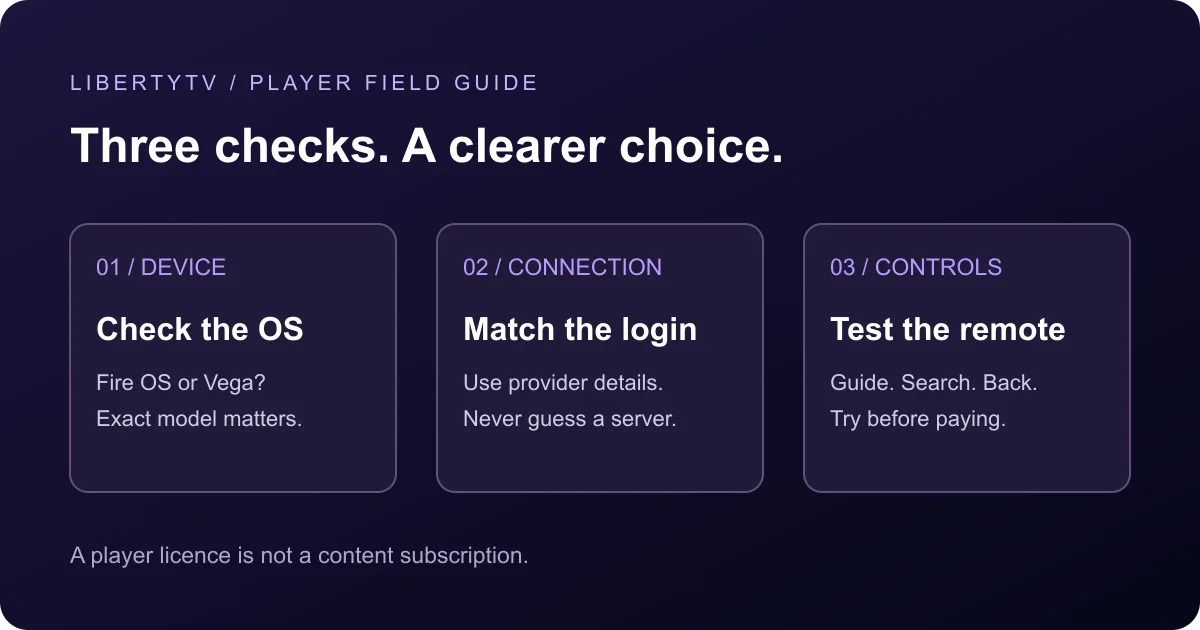
Choose a player only after checking three things: it supports your exact Fire TV model and operating system, it accepts the connection details your provider supplies, and you can navigate it comfortably with your remote. An attractive interface cannot fix a platform or login mismatch.
This is a selection guide, not a hands-on performance ranking. We checked the developer sources listed below; we have not tested every player on every Fire TV model. No player is declared universally best, and no third-party player is guaranteed to work with every LibertyTV account configuration.
1. Check Fire OS versus Vega OS
Fire TV is a device family, not a promise that every model runs the same software. Amazon documents separate Fire OS and Vega OS app binaries: APK for Fire OS and VPKG for Vega. The Fire TV Stick 4K Select is a Vega device. A guide written for an Android APK is therefore not a universal Firestick guide.
Find the exact model and software version in your device settings, then check the developer’s supported platforms and the app listing on that device. If you have Vega, use an explicitly compatible app. Do not rename an APK or assume that enabling a developer option converts it into a Vega app. If compatibility is unclear, confirm with the app developer or LibertyTV support before buying a player or subscription.
2. Match the player to your login format
A player and a streaming subscription are different products. A player organizes and plays sources you add; buying its premium features does not buy a channel package. Use only content you are authorized to access.
Before installing, ask your provider which connection method is supported for your account. A username and password alone may be insufficient for a third-party player. Do not substitute a server address found in a forum, and do not post your playlist URL or credentials publicly.
- Provider-specific app: follow that provider’s instructions. LibertyTV’s current custom-app guide uses an account username and password without a separate server URL.
- Xtream Codes: commonly requires a server URL, username and password. Confirm all three with your provider rather than guessing the server.
- M3U: use the playlist URL or file supplied for your account. Ask whether a separate guide-data URL is needed.
- Portal-based setup: select this only when your provider specifically supplies and supports that method. It is not interchangeable with another login type.
Two routes to evaluate—not an unsupported ranking
For an existing LibertyTV customer, start with the custom-player route documented in our setup guide. It keeps the installation instructions and account-specific login method together. Confirm your device is compatible first; the Android/Downloader instructions are not a Vega compatibility claim.
If you need an independent playlist player, TiviMate is one documented option to evaluate on a compatible Android-based TV device. Its official Google Play listing specifies Android 6.0 or later, remote-control navigation, and M3U, Xtream Codes and Stalker Portal support. That Android requirement is a prerequisite, not a guarantee for your particular Fire TV.
TiviMate’s developer offers an APK through tivimate.com and a Downloader installation route. Use the developer’s current instructions and confirm support for your hardware before proceeding. We have not verified a native Vega version or account-specific LibertyTV compatibility, so neither is promised here.
3. Test the experience from the sofa
Treat remote usability as a short acceptance test, not a marketing adjective. Try the tasks you repeat each evening before purchasing optional features. A player designed around a touchscreen may be awkward when the only controls available are directional buttons, Select and Back.
- Move between categories and channels without needing a mouse or phone.
- Open the programme guide, return to playback and find the current programme.
- Add a favourite and find it again after restarting the app.
- Check whether guide text, focus highlights and settings remain readable at your normal viewing distance.
- If you need recording, catch-up or multiple views, confirm both the player feature and your provider’s permissions and connection limits. A player feature alone does not grant those capabilities.
Check the price and the source separately
The official TiviMate listing includes in-app purchases. We have not verified a current US checkout price, so no dollar amount or lifetime entitlement is quoted. Review the actual checkout for price, renewal terms, device limits and refund conditions before paying. A player licence is separate from your streaming-service bill.
Prefer the device’s official store where the correct app is offered, or a download linked by the developer. Check the developer identity, not just the app name. Avoid modified “premium unlocked” packages and third-party sellers claiming a player automatically includes a content subscription.
Downloader is a way to open a URL and obtain a file; it is not a streaming subscription or a compatibility guarantee. AFTVnews explains that its numeric codes are shortened URLs. Use a code from the developer or your provider’s current guide, not an unexplained code from an advertisement. Do not bypass a device security warning or a blocked installation; ask the developer for a supported route.
Choose the next step that fits your situation
Still comparing hardware or apps? Review the supported-device guide first. Already have LibertyTV credentials and a compatible Fire OS device? Use the Firestick installation instructions instead of repeating a generic setup tutorial.
If you are considering LibertyTV, review the current plans and device guidance before starting a trial. Use the trial to check your own device and connection; it is not evidence of a guaranteed catalogue, stream quality or availability in every region.
Common questions
Which IPTV player is best for my Firestick?
There is no universal winner in this guide. Choose one that supports your exact operating system, accepts your provider’s connection format and passes your remote-control usability test. Confirm compatibility before paying.
Does paying for a player include channels?
Not necessarily. TiviMate explicitly describes itself as a player without content. Its paid features do not include a channel subscription. Review the separate terms of your content provider.
Can I use the same APK instructions on every Fire TV?
No. Amazon distinguishes Fire OS APK apps from Vega VPKG apps. Check the exact model and operating system; use an app specifically supported on your device.
Sources & related guidance
Developer and LibertyTV guidance checked on September 13, 2026. App availability and commercial terms can change.